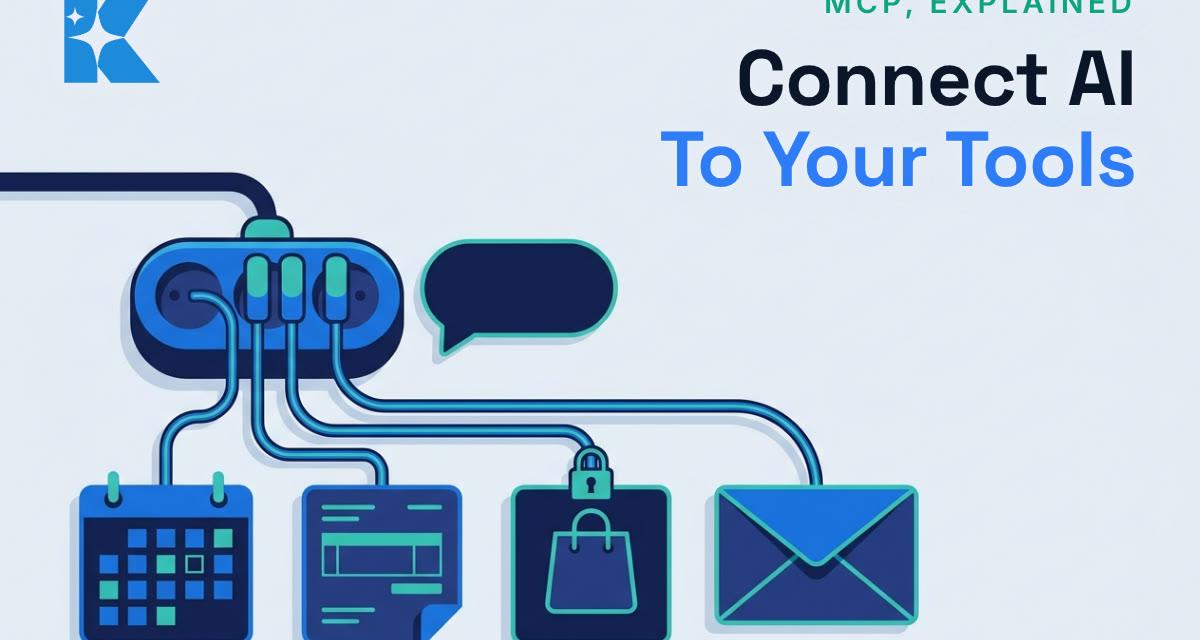
Your AI can now plug straight into your calendar, your files and, in some cases, your accounts. The standard that makes it possible is called MCP, and we would connect one tool this afternoon and leave the rest until it has earned some trust.
What MCP actually is
MCP stands for Model Context Protocol. Strip the jargon away and it is a standard plug. Without it, you copy figures out of one tool and paste them into a chat. With it, you connect the AI to the tool once, and the AI looks things up itself when you ask.
It is no longer a niche developer toy. Claude, ChatGPT and Gemini all support it, and vendors such as HubSpot publish their own MCP server so an assistant can work with your CRM data. In Claude, you can browse a directory of reviewed connectors, or add one by pasting the address of a remote server, as Anthropic's documentation on custom connectors explains.
The practical upside is simple. Instead of "paste last month's invoices into this chat", you ask "which invoices are still unpaid?" and the AI fetches the answer. That saves the copying, and it cuts the risk of working from a stale spreadsheet.
Step one: connect one tool, read-only
Do not connect everything at once. Pick the tool where a wrong answer costs you least, such as your calendar or a shared folder of documents. Ask the AI to find and summarise things, not to send, change or delete anything.
A good first question is one you can check in thirty seconds. "What meetings do I have this week?" is ideal, because your calendar will tell you straight away whether the AI got it right. Only add a second tool once the first one behaves.
Step two: use the vendor's connector, not a lookalike
This is the step most owners skip, and it matters most. A recent security census analysed a snapshot of a public MCP registry from August 2026 and counted 21,643 servers. That is a lot of plugs, and not all of them are what their names suggest. Other researchers have described attackers publishing servers with names that closely resemble legitimate ones, and registries with weak checks on who actually owns what.
A connector you add can see whatever you let it see. So the rule we would give any client is plain: only add a connector that the software vendor itself links to from its own help or developer pages. If you cannot find the vendor linking to it, do not add it.
Step three: make it ask before it acts
Connected is not the same as read-only. Many connectors let the AI send an email, post an update, create an invoice or move money. In May 2026 the US National Security Agency published guidance on MCP and said, in its own words, that the protocol's rapid spread has outpaced the development of its security model. That is a government security agency telling organisations that adoption has run ahead of safety.
You do not need to be frightened by that, but you do need to act on it. Keep approval switched on for anything that sends, posts, deletes or pays. Never set a payment action to auto-approve. If a tool cannot be made to ask first, we would not connect it to anything that matters.
Step four: expect gaps, and know who else is involved
Not every product you use will have a tidy, one-click connector. We looked at accounting software as an example. Xero publishes an official MCP server on GitHub, but according to the third-party guides we found, it is a server you run yourself with developer credentials rather than a button you press. We could not confirm that from Xero directly, so check its developer pages before relying on it.
When there is no simple official route, owners tend to end up using a third-party service that sits between the AI and the software. That can be perfectly reasonable, but it is a trade-off you should name. It means one more company holds access to your books. Read what that company does with your data before you hand over the keys, and ask what happens to the connection if you stop paying them.
There is a second limit worth knowing. In the guides we read, the AI only acts inside a chat that you start. It does not sit watching your ledger and does not run on its own schedule, unless you separately build something to make it do so.
Step five: test it on a task you can verify
Before you rely on any connector, give it a task with a known answer. Ask for this week's meetings, or last month's unpaid invoices, and check the result against the real tool. If it gets a known task wrong, you should not trust it on an unknown one.
Repeat the test when something changes. A connector that worked in October may behave differently after an update, and a registry entry that was fine last quarter may not be now. The researchers behind the registry census studied exactly this kind of quiet change, where a server keeps its name while its behaviour drifts.
The order we would follow with a client
Put together, the order is short enough to remember:
- Connect one tool only.
- Keep it read-only at first.
- Use the vendor's own connector.
- Keep approvals switched on for anything that acts.
- Test it on a question you already know the answer to.
That order is deliberately boring. The firms that get into trouble with connected AI are rarely the ones that moved slowly. They are the ones that connected five tools on day one, clicked allow on every prompt, and found out later what the AI could reach.
What this does not do
Connecting a tool does not make the AI right. It can still misread a figure or summarise the wrong month, and a connector only changes where the information comes from, not whether the answer is correct. A cheaper or faster model can also take more attempts to get a job right, so keep a person checking anything a customer will see or anything involving money.
It is also not a data protection shortcut. Whatever the AI can read through a connector may be passed to the AI provider, so check the privacy settings for your plan and think about customer personal data before you connect a mailbox or a CRM.
Where to start this afternoon
Open the connectors or settings page in your AI app and see what is already listed. Pick one tool, connect it, and ask a question you can check yourself. That one small test will teach you more about how this works for your business than any amount of reading, including this post.
If you would like a second pair of eyes on which tool to connect first, we are happy to talk it through with you.


